
🆕 New in Version 3.4
Media trim, drag & drop images, a rebuilt CSS editor and more...
See what's new →🆕 New in Version 3.4
Media trim, drag & drop images, a rebuilt CSS editor and more...
See what's new →Pull data directly from a Google Sheet and use it on any of your graphics within H2R Graphics.
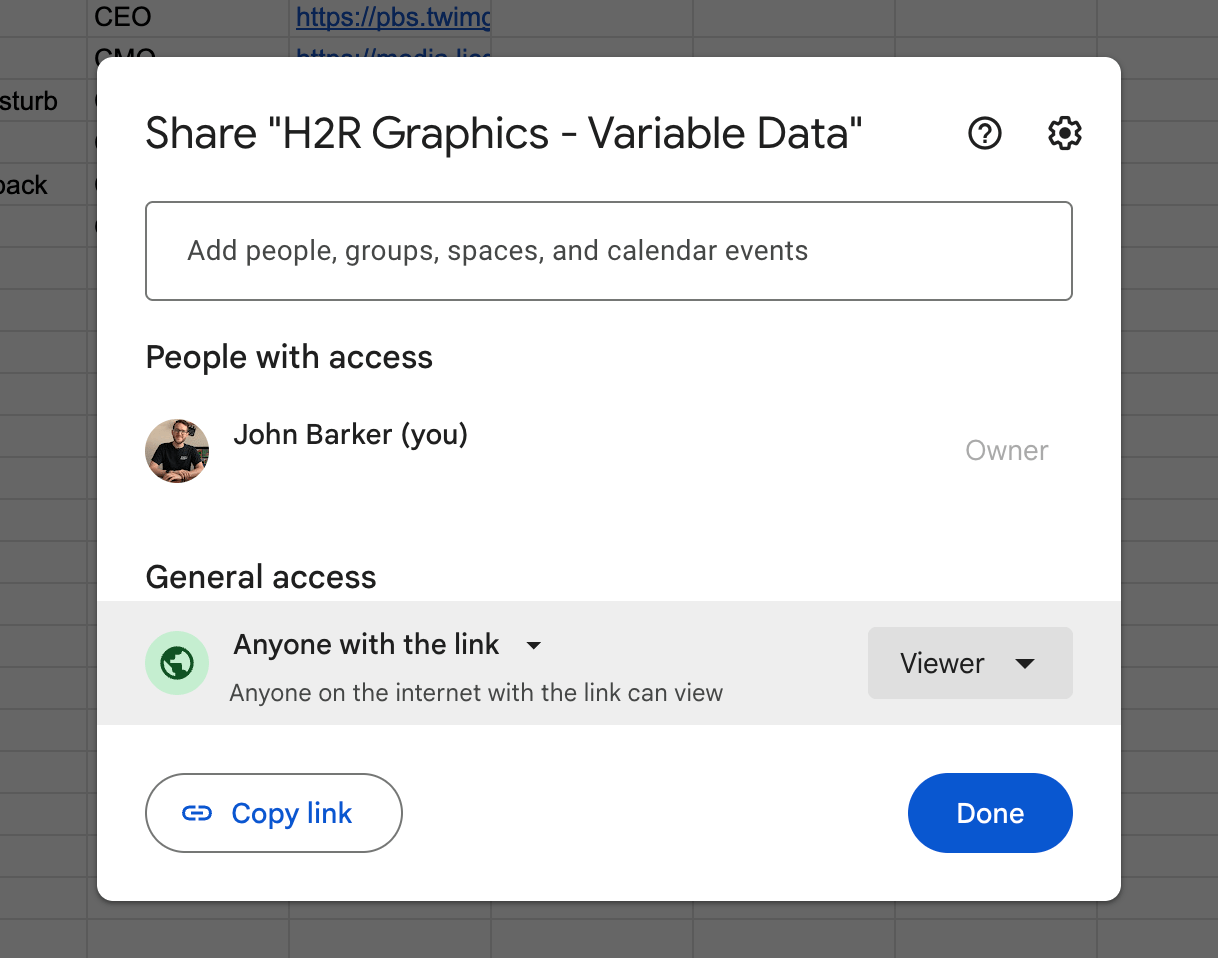
Open the Share option within Google Sheets and ensure that you have set the “General Access” to “Anyone with the link”.
This will ensure that H2R Graphics can read the data from the sheet.
Copy the Sheet ID from the URL bar of your browser. The Sheet ID is the long ID within the URL. For example:
https://docs.google.com/spreadsheets/d/1D3ld3voCiW9XerkyegO5BvhHj8ki_NtU8Qyjxy01D/edit
Sheet ID: 1D3ld3voCiW9XerkyegO5BvhHj8ki_NtU8Qyjxy01D
Navigate to the Variables tab in H2R Graphics. Scroll down and use the + Google Sheet button to connect to a new sheet.
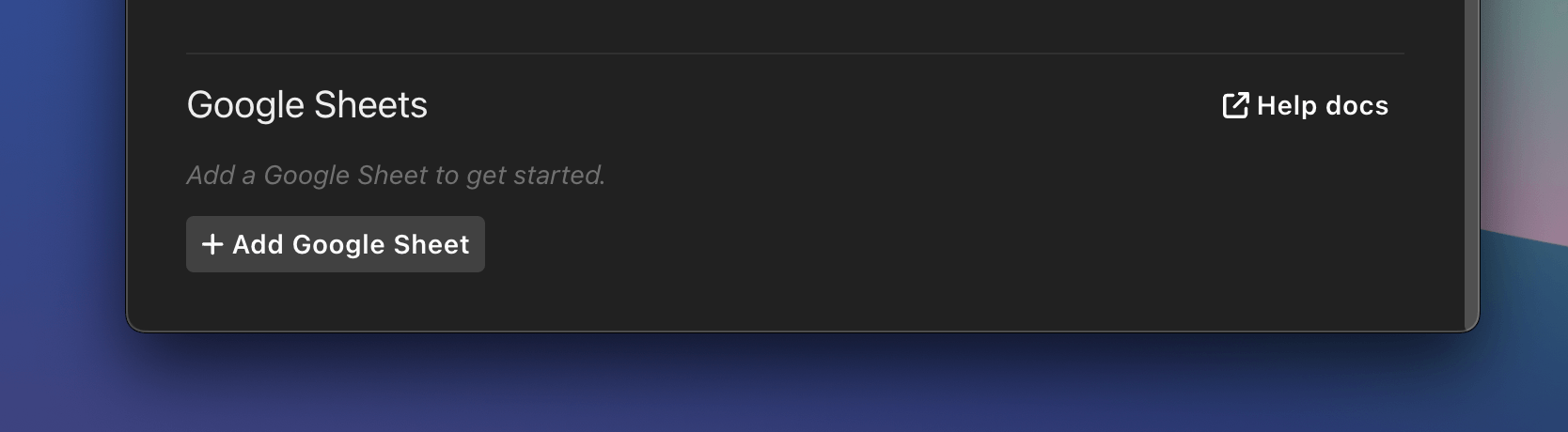
Paste in the Sheet ID and the name of the sheet you wish to connect to.
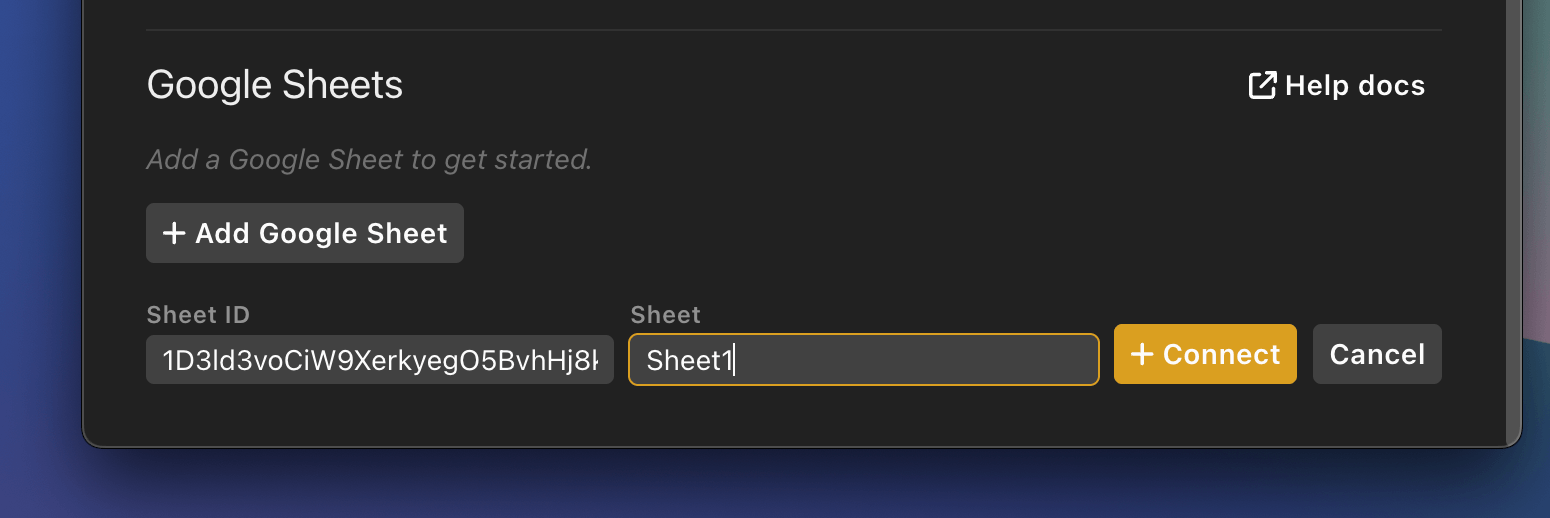
Press ´Connect`
If your spreadsheet has more than one tab, you can choose which one to pull data from. Each tab has its own gid, shown in the URL bar when that tab is selected:
https://docs.google.com/spreadsheets/d/1D3ld3voCiW9XerkyegO5BvhHj8ki_NtU8Qyjxy01D/edit#gid=123456789
In this example the gid is 123456789. Use this to connect to the correct tab within your sheet.
Now the sheet will be connected and data will populate from the Google Sheet.
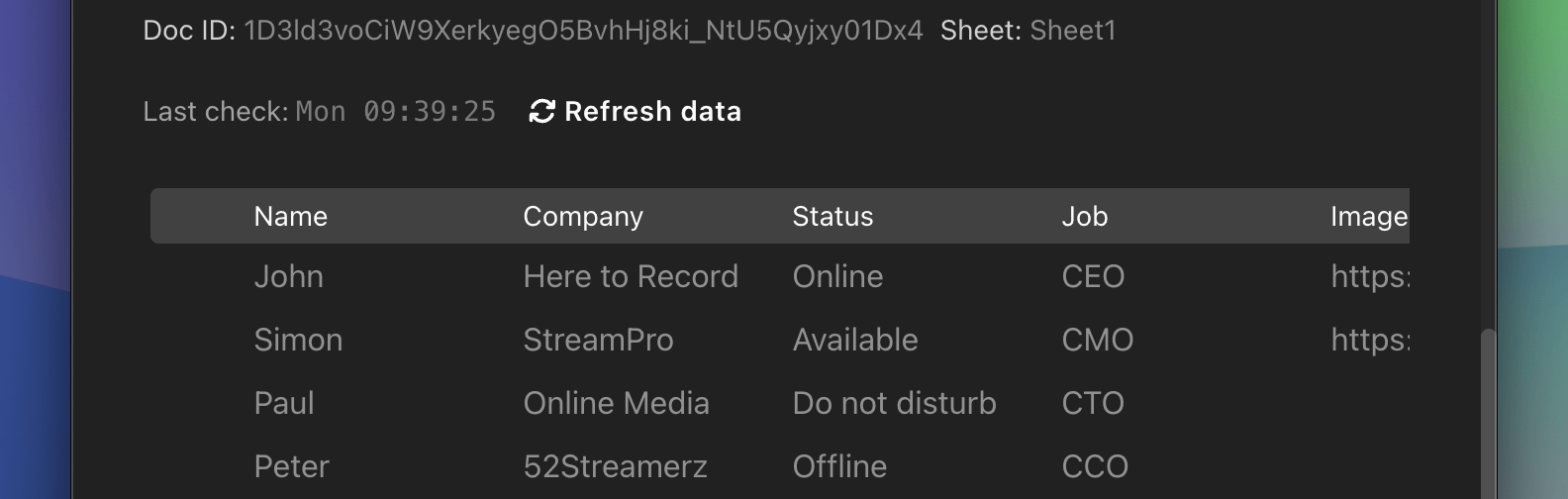
Any time you want to pull changes from your Google Sheet, click the Refresh data button within H2R Graphics.
This will pull all the latest changes from your Google Sheet and sync them into H2R Graphics.

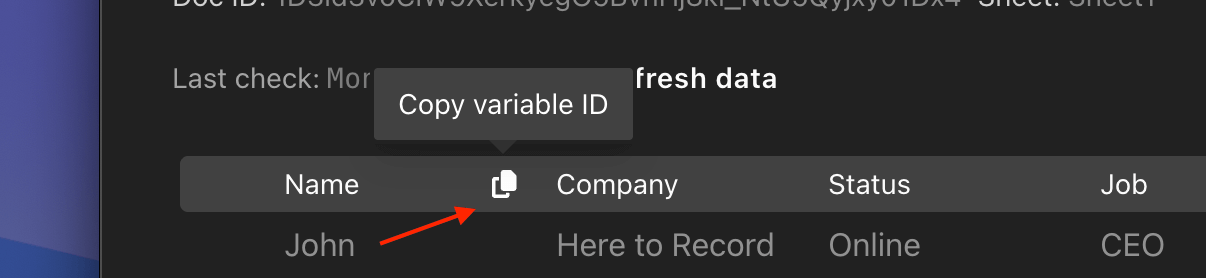
Hover over any column within your Google Sheet in H2R Graphics and you will be able to copy the variable for that column.
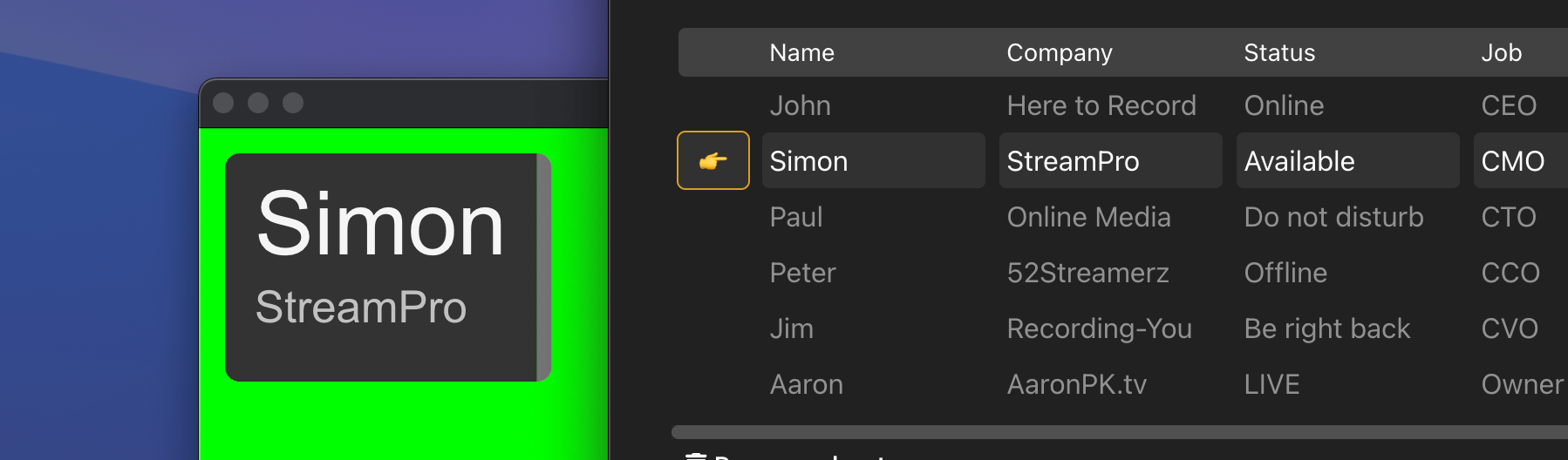
Now you can paste that variable into - for example - a Lower Third graphic and use the data coming from your Google Sheet.

Finally: Select any row of the Google Sheet to set the variable.
You can reference specific cells in your Google Sheet without selecting a row by using row variables. Use the format [xxx.row1.cell1] where xxx is your Google Sheet variable ID.
For example, [xxx.row1.cell1] pulls the value from the first row, first column of your connected Google Sheet. This gives you more precise control over which data appears in each graphic, and lets you display data from multiple rows at the same time.
You can control the Google Sheets integration remotely using the Companion module. For general setup and configuration, see the Companion module documentation.
Tip: Ensure you are running at least v3.9 of the H2R Graphics Companion module to access the Google Sheets actions.
Once connected, the following actions are available for Google Sheets:
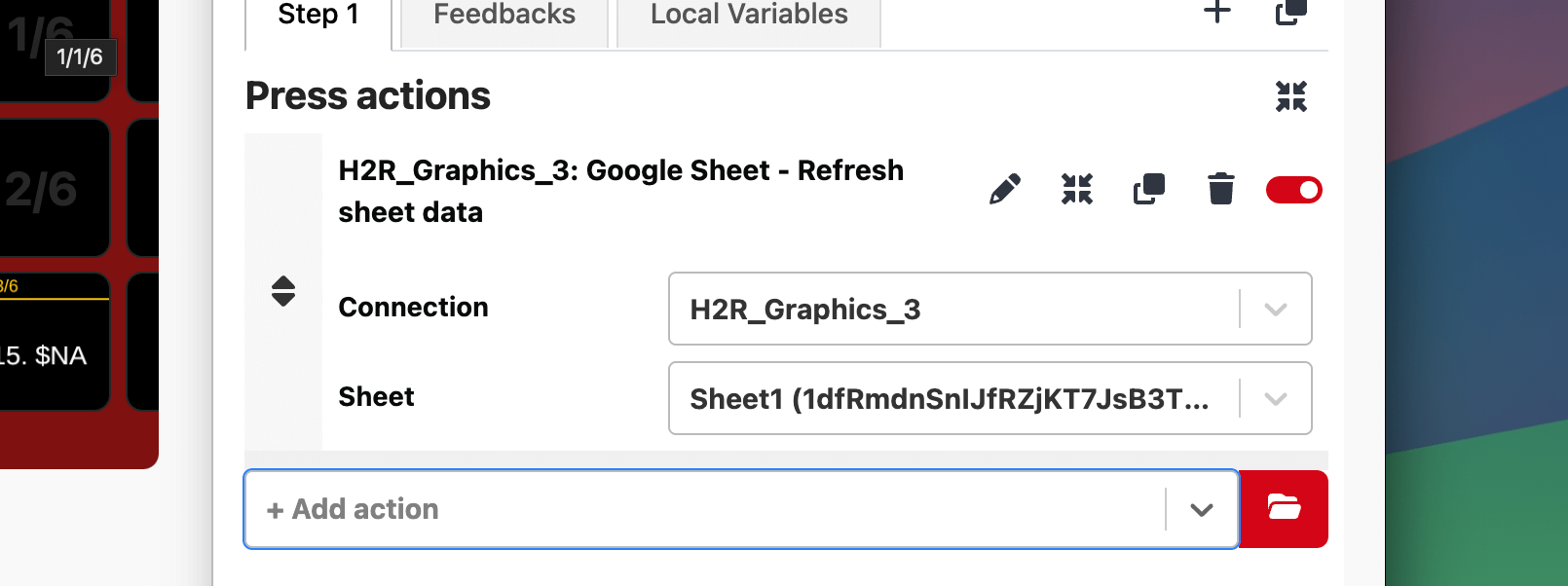
Use the Google Sheet: Refresh sheet data action to pull the latest data from a Google Sheet.
This action lets you choose which connected Google Sheet to refresh, syncing the latest changes into H2R Graphics.
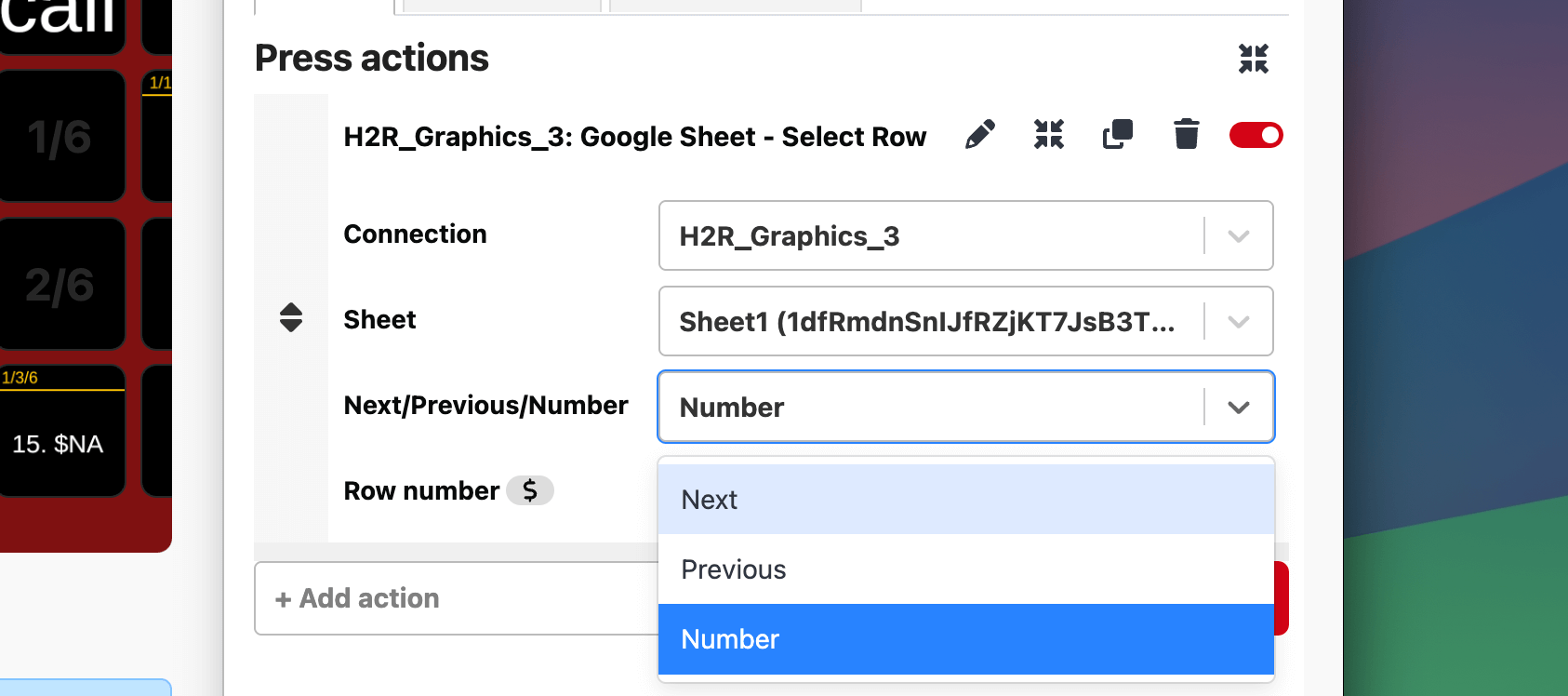
Use the Select row action to change the active row on a connected Google Sheet.
First, choose which Google Sheet to target. Then select one of the following options:
Simplify your graphics workflow
Start using graphics on your live stream or video productions.
Get H2R Graphics product updates
New features, releases and tips, straight to your inbox.
No spam. Unsubscribe any time.