
🆕 New in Version 3.4
Media trim, drag & drop images, a rebuilt CSS editor and more...
See what's new →🆕 New in Version 3.4
Media trim, drag & drop images, a rebuilt CSS editor and more...
See what's new →How to integrate H2R Graphics into your Osee GoStream Duet for live production graphics.
The GoStream Duet 8 ISO has a built-in web browser input, which means you can load H2R Graphics directly on the device without needing a separate computer to render your overlays.
Start by launching H2R Graphics on your computer and powering on your GoStream Duet.
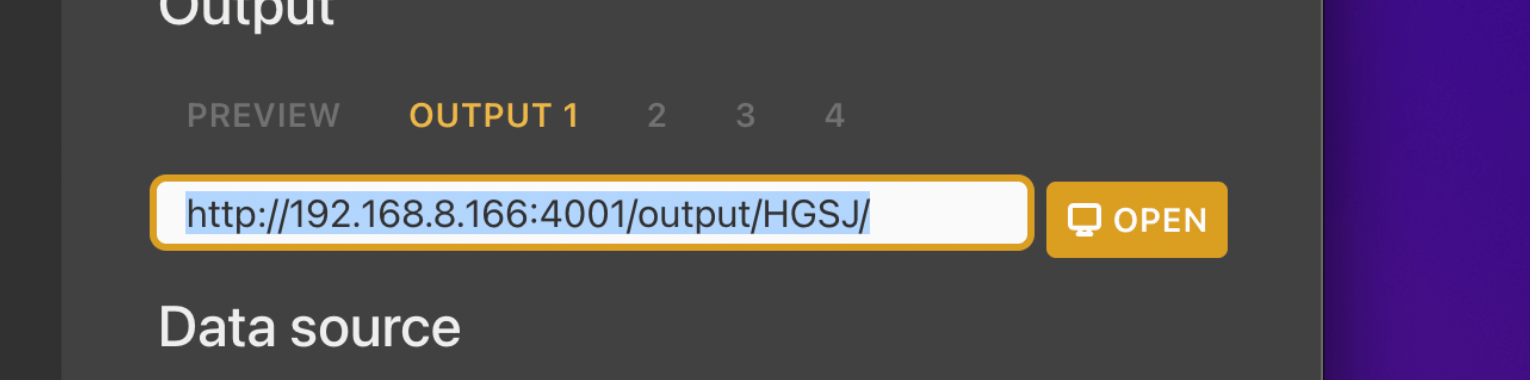
Open your desired project in H2R Graphics and copy the output URL.
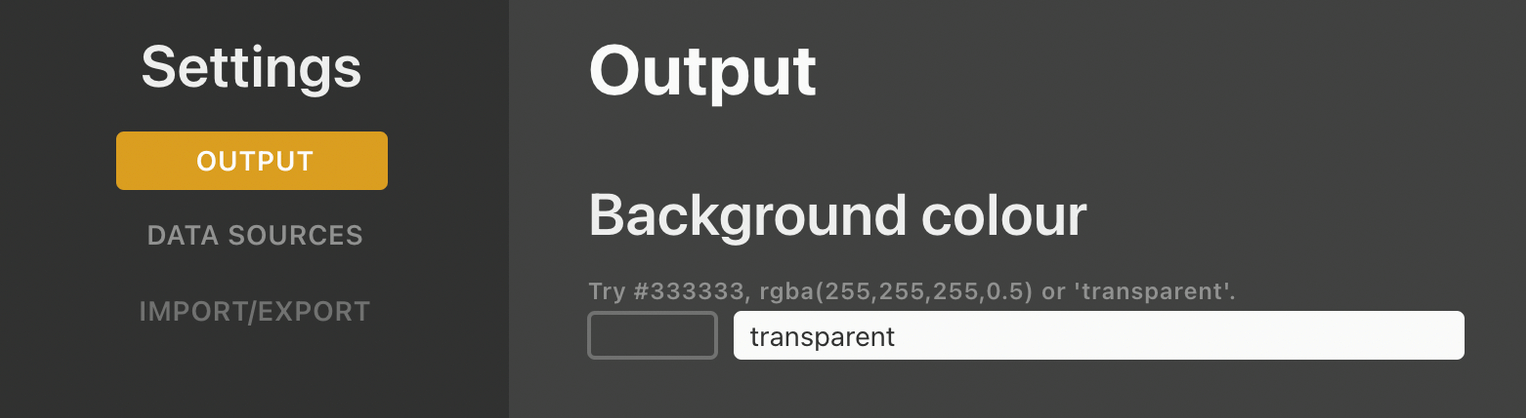
By setting the background colour of your output to “Transparent” you can allow the GoStream to key out the background (as opposed to needing a chroma/luma key).
Open the Launcher > Output and then set the background colour by typing in “transparent”.
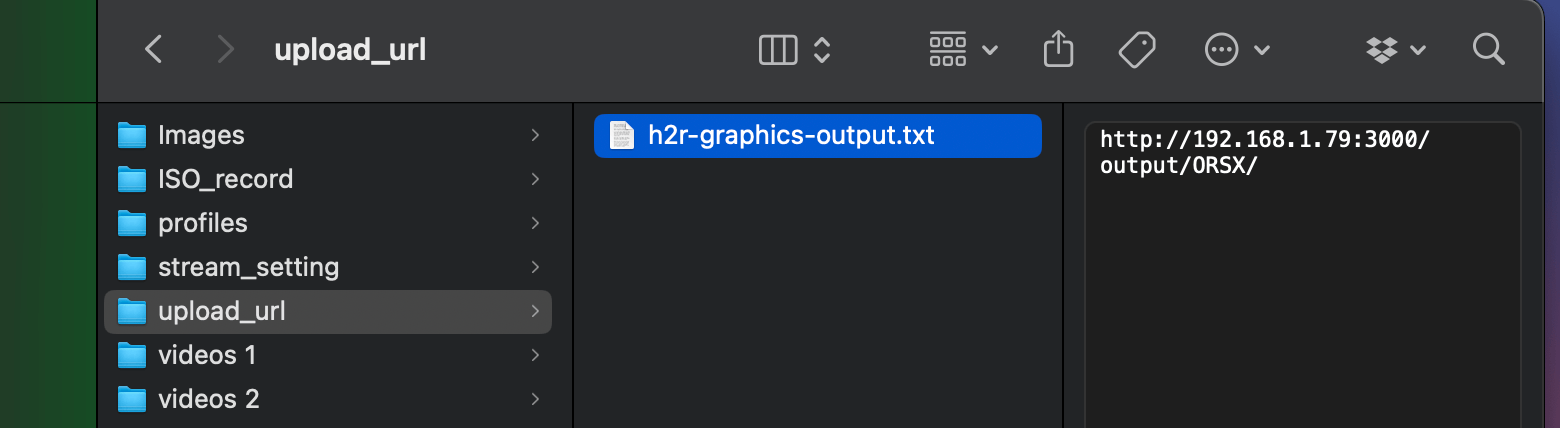
Create a .txt file on your computer, paste in the output URL copied from H2R Graphics, and save the file to the upload_url folder on the GoStream’s SD card.
Insert the SD card into the GoStream Duet (with the unlabeled side facing up). Then navigate to MENU > Media Player > Browser and upload the URL.
Next, set the type to Browser in MENU > Media Player > mp 2 selection.
Turn on the DSK (Downstream Key) to display the H2R Graphics overlay on your PVW or PGM output.
Simplify your graphics workflow
Start using graphics on your live stream or video productions.
Get H2R Graphics product updates
New features, releases and tips, straight to your inbox.
No spam. Unsubscribe any time.