
🆕 New in Version 3.4
Media trim, drag & drop images, a rebuilt CSS editor and more...
See what's new →🆕 New in Version 3.4
Media trim, drag & drop images, a rebuilt CSS editor and more...
See what's new →H2R Graphics can use any font installed on your computer.
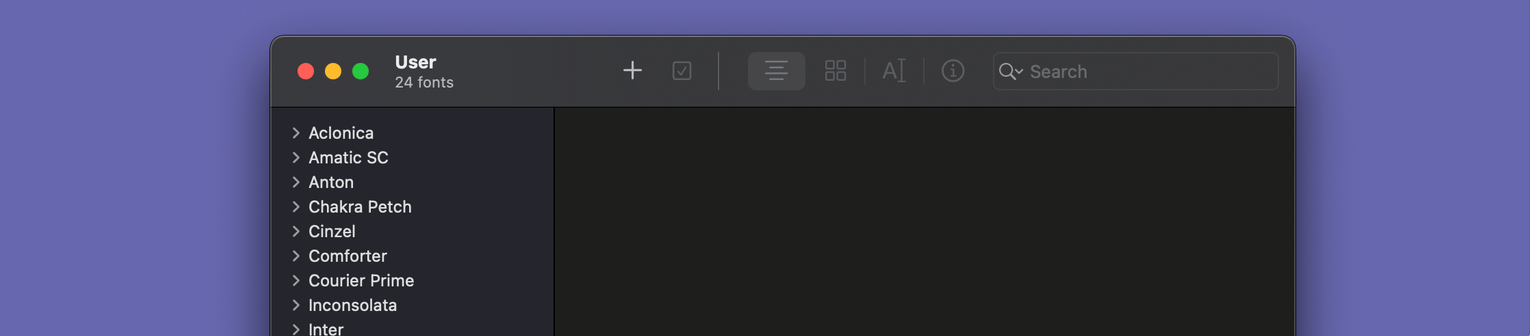
In the example above, there are a few fonts installed on the computer. We will use Courier Prime in this following example.

We’ve typed in the name of the font we want to use exactly as it is listed in our Font Book. This is super important.
This font can now be used on any graphics using my current theme.
If you are using multiple computer - Computer A is running H2R Graphics which Computer B is showing the output of H2R Graphics - you will want to install a font on both computers.
At the very least though, the font should be installed on whichever computer is showing the H2R Graphics output.
The font picker now lists the fonts installed on your computer, so you can choose one from the dropdown instead of typing the name. This works both in the theme settings and when styling text in Build graphics.
You can still type in a font name by hand. That’s useful when the font is installed on your output computer but not the one you’re controlling from, since H2R Graphics works across your network (and even across the world) and the two computers may have different fonts installed.
Whichever way you choose a font, make sure it’s installed on whichever computer is showing the H2R Graphics output, otherwise it will fall back to a default.
Simplify your graphics workflow
Start using graphics on your live stream or video productions.
Get H2R Graphics product updates
New features, releases and tips, straight to your inbox.
No spam. Unsubscribe any time.