
🆕 New in Version 3.4
Media trim, drag & drop images, a rebuilt CSS editor and more...
See what's new →🆕 New in Version 3.4
Media trim, drag & drop images, a rebuilt CSS editor and more...
See what's new →The Map graphic is H2R Graphics is perfect for seeing where your live stream audience is watching from.
In combination with the Social graphic, the Map graphic displays a location pin based on a location mentioned in a live stream comment.
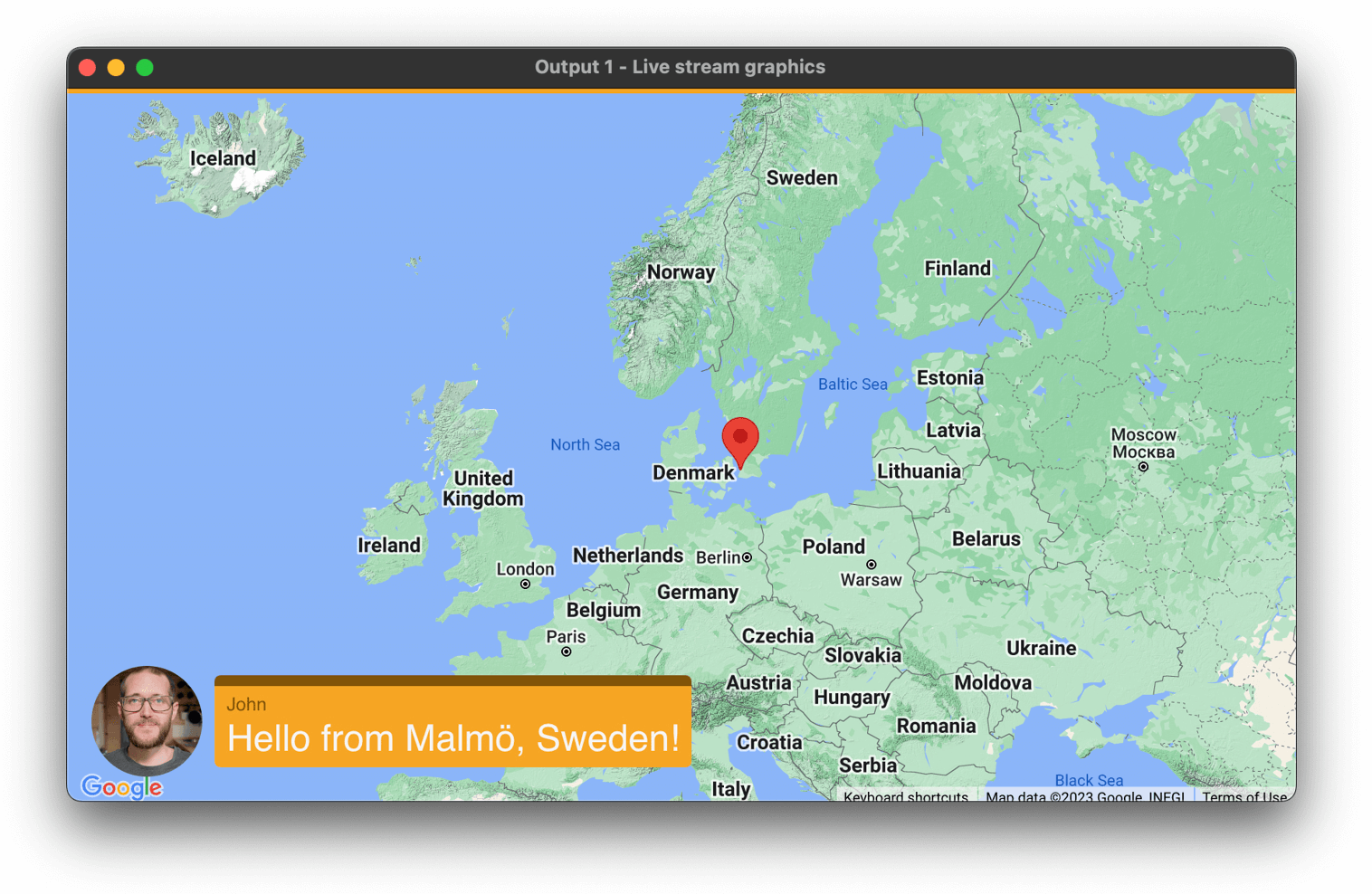
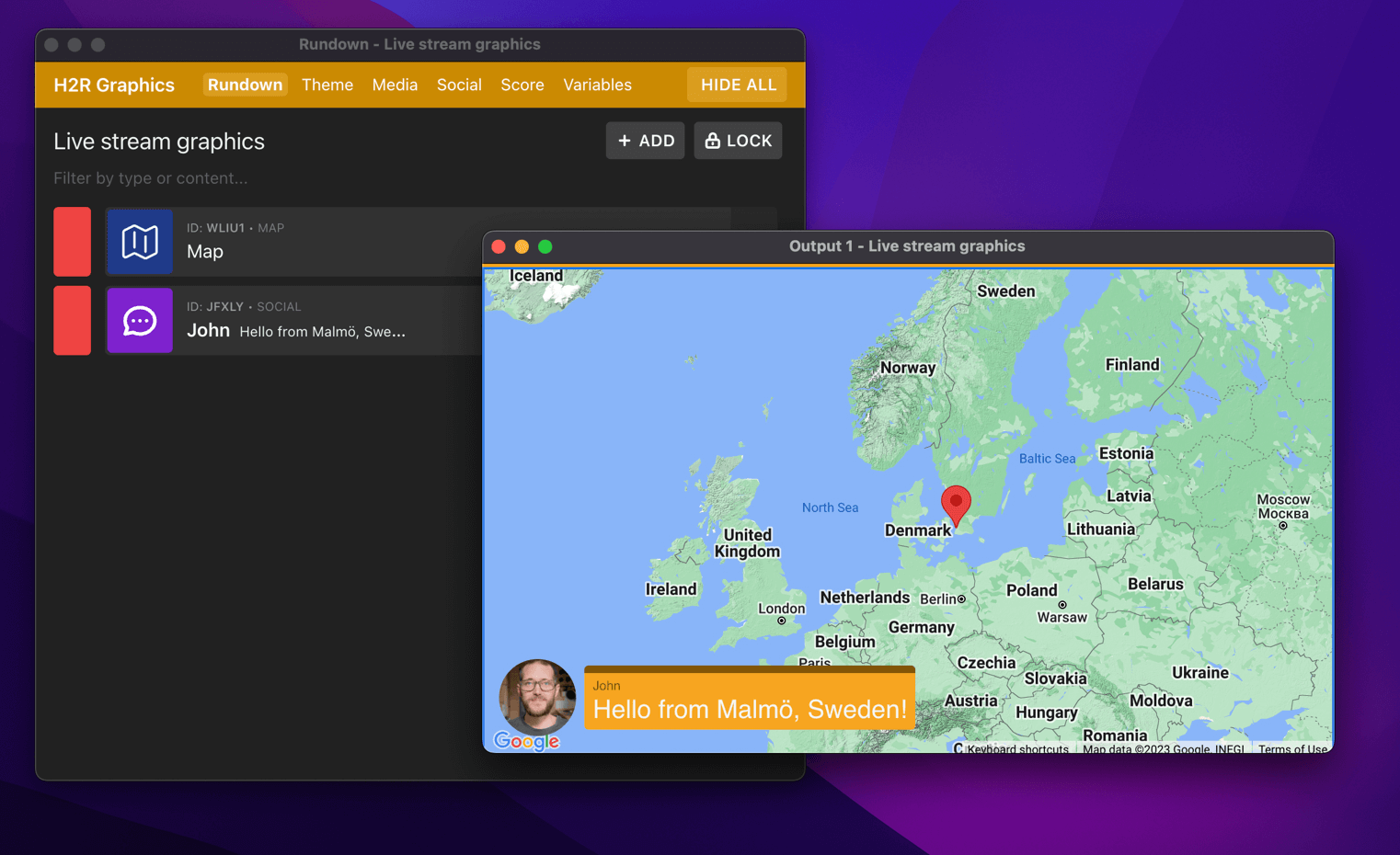
The Map graphic can be added just like any other graphic.
Additionally, add a Social graphic to your rundown which will be used for showing messages and extracting pin information.
Use your Google account to sign in to console.developers.google.com
Create a project in the Google developer console
Once signed in, use the ‘Select a Project’ modal to create a new project, name it whatever you want.
Once created, you will be directed to the ‘APIs and services’ page. From here you can choose ‘+ Enable APIs and services’.
Use the search box to add these two APIs:
Search the API by name and then use the “Enable” button to add them.
Once the API is enabled, there will be a ‘Credentials’ tab on the left, click on that. On the credentials page there will be a ‘+ Create credentials’ option at the top, click that, then choose ‘API Key’.
If everything went well, you will get a modal pop up with your API key for use in H2R Graphics. Copy/paste it into the software settings.
Click on any Social graphic that includes a location and bring it on air.
If the app is able to, it will extract the location information within the text of the comment and add a pin to the Map graphic.
This works well for phrases like…
Simplify your graphics workflow
Start using graphics on your live stream or video productions.
Get H2R Graphics product updates
New features, releases and tips, straight to your inbox.
No spam. Unsubscribe any time.