
🆕 New in Version 3.4
Media trim, drag & drop images, a rebuilt CSS editor and more...
See what's new →🆕 New in Version 3.4
Media trim, drag & drop images, a rebuilt CSS editor and more...
See what's new →Use the official H2R Graphics module to control the app from Companion
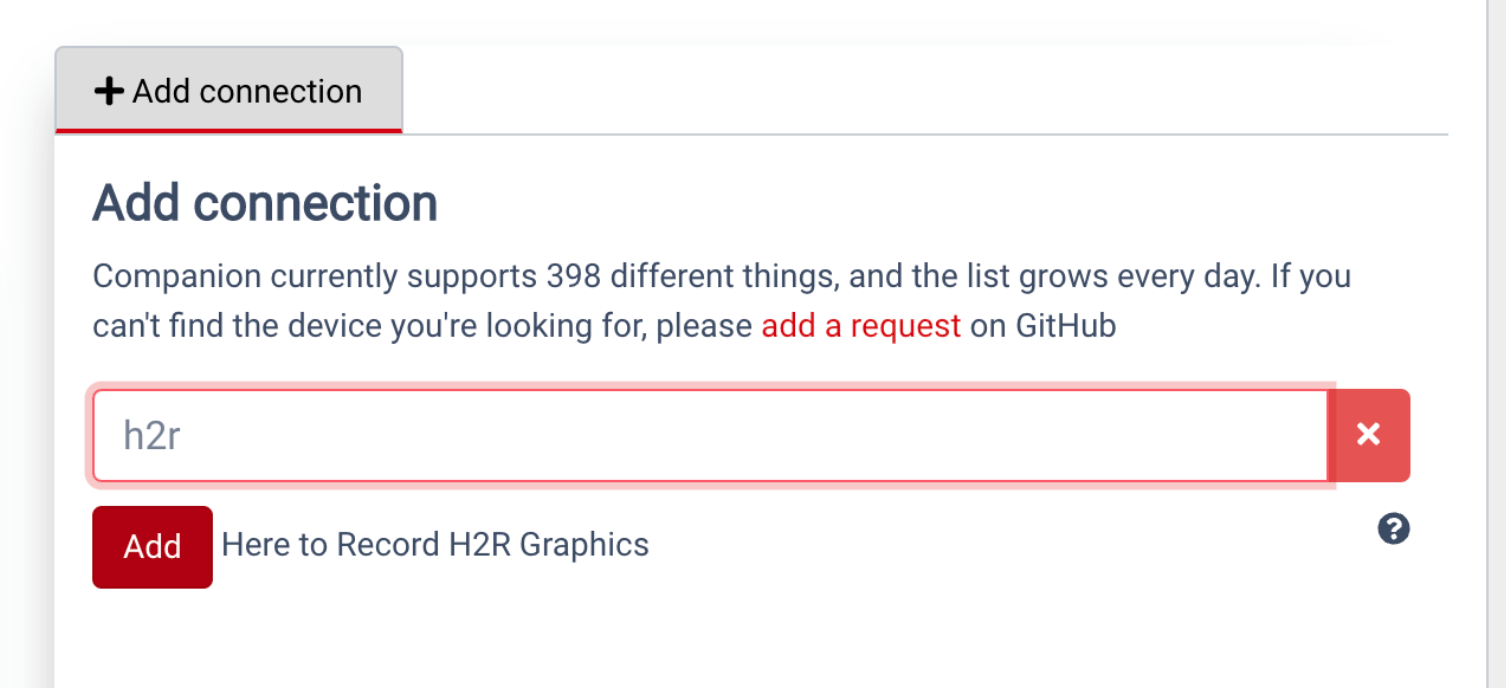
First, add the “Here to Record - H2R Graphics” module within your companion UI.
Next, configure the settings within the module.
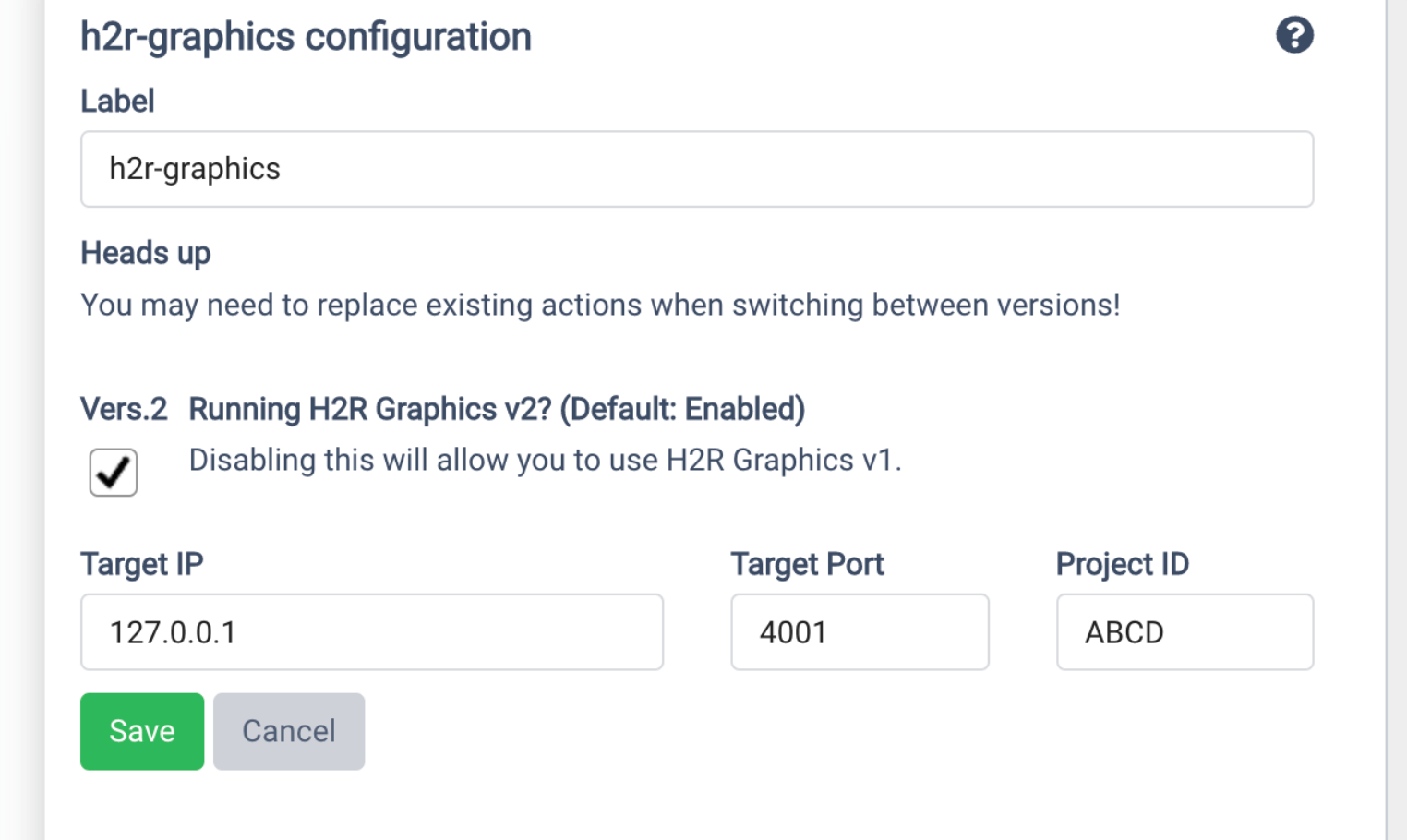
Note the following…
Target IP - You will see in H2R Graphics the “Network” settings in the launcher. That same IP address should be in this input within Companion.
Target Port - This should be set to 4001.
Project ID - Use the project ID from H2R Graphics. This defaults to ABCD, but will be different if you have created a new project.
H2R Graphics for companion comes with some handy presets for use in your buttons.

Run - Used to trigger the “Run” button from within H2R Graphics
Hide all - Hides all graphics that are currently on-air.
Every graphic on your rundown will show up in the “Show/Hide” section.
These are dynamically updating with the latest content from your H2R Graphics project.
Using these presets will allow you to toggle these graphics on and off air.
H2R Graphics exposes a selection of variables for use within your Companion setup.
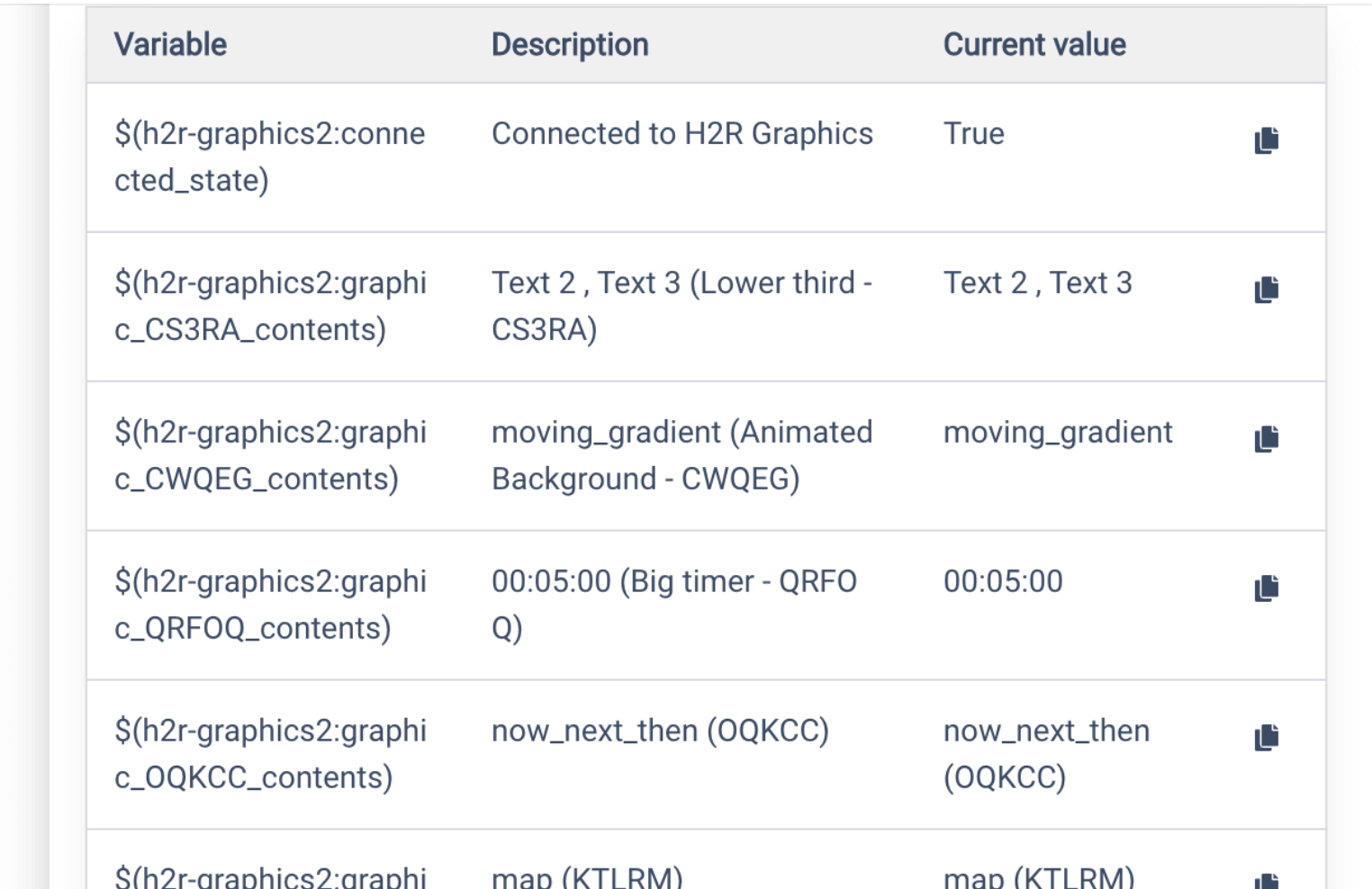
Examples are:
Simplify your graphics workflow
Start using graphics on your live stream or video productions.
Get H2R Graphics product updates
New features, releases and tips, straight to your inbox.
No spam. Unsubscribe any time.