
NDI® output [beta]
H2R Graphics can send its output as an NDI® source on your network. This means you can use your graphics in any NDI-compatible production software without needing a capture card or browser source — just pick up the H2R Graphics source directly over your network.
ℹ️ The NDI output - currently in beta - is only available on Windows.
Starting the NDI output
To start sending an NDI output from H2R Graphics:
- Open the H2R Graphics launcher
- Enable the NDI checkbox next to the output URL
- H2R Graphics will now begin sending an NDI output on your network

Viewing the NDI output
Once the NDI output is enabled, you can confirm it is working by viewing it in any NDI-compatible application.
For example, open NDI Studio Monitor (included with NDI Tools) and select the H2R Graphics source from the list.
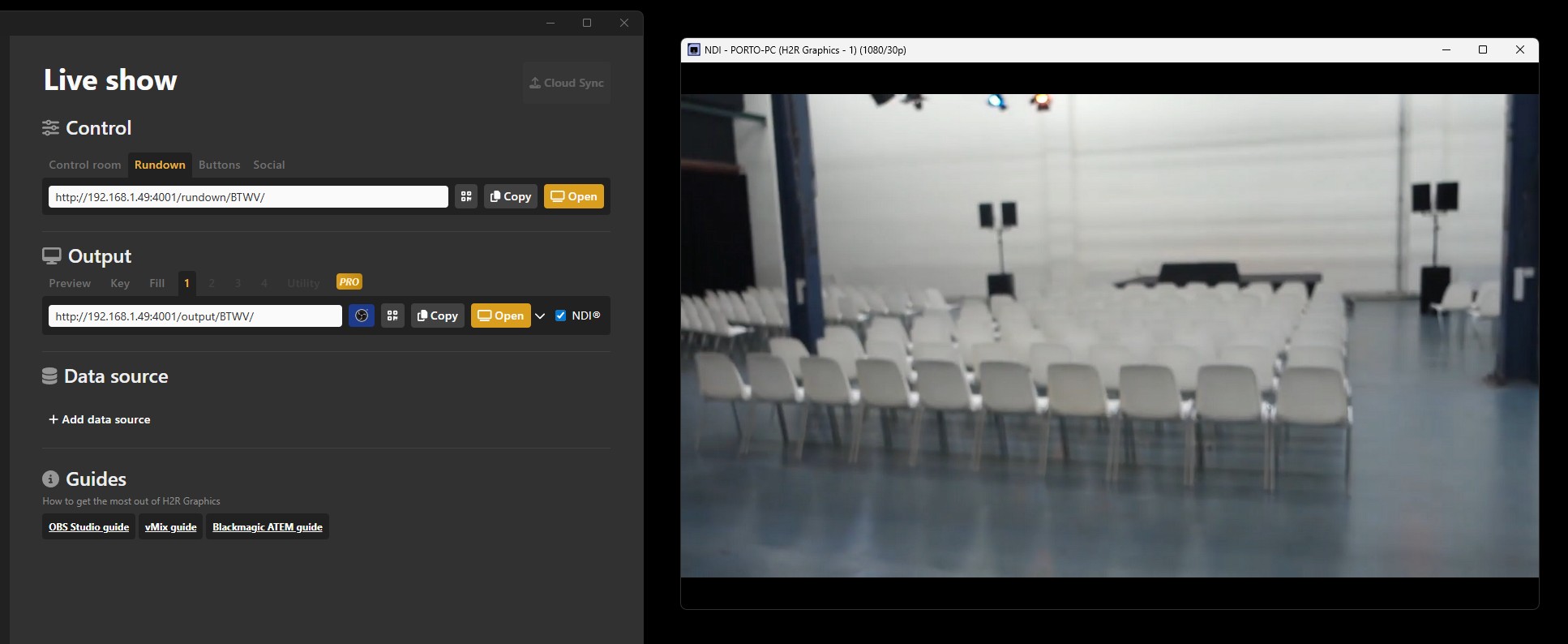
You can now use the H2R Graphics NDI source just like any other NDI source on your network — add it to your production software such as OBS Studio, vMix, Wirecast, or any other NDI-compatible application.
Troubleshooting
NDI source not appearing
Make sure NDI Tools are installed on your computer. NDI Tools provides the required NDI runtime components.
Output not displaying correctly
Try turning off desktop scaling in your Windows display settings. Desktop scaling can interfere with the NDI output resolution.
NDI output still not working
Restart H2R Graphics. If the issue persists, restart your computer to ensure the NDI services are running correctly.
NDI® is a registered trademark of Vizrt NDI AB.