
Telestrator
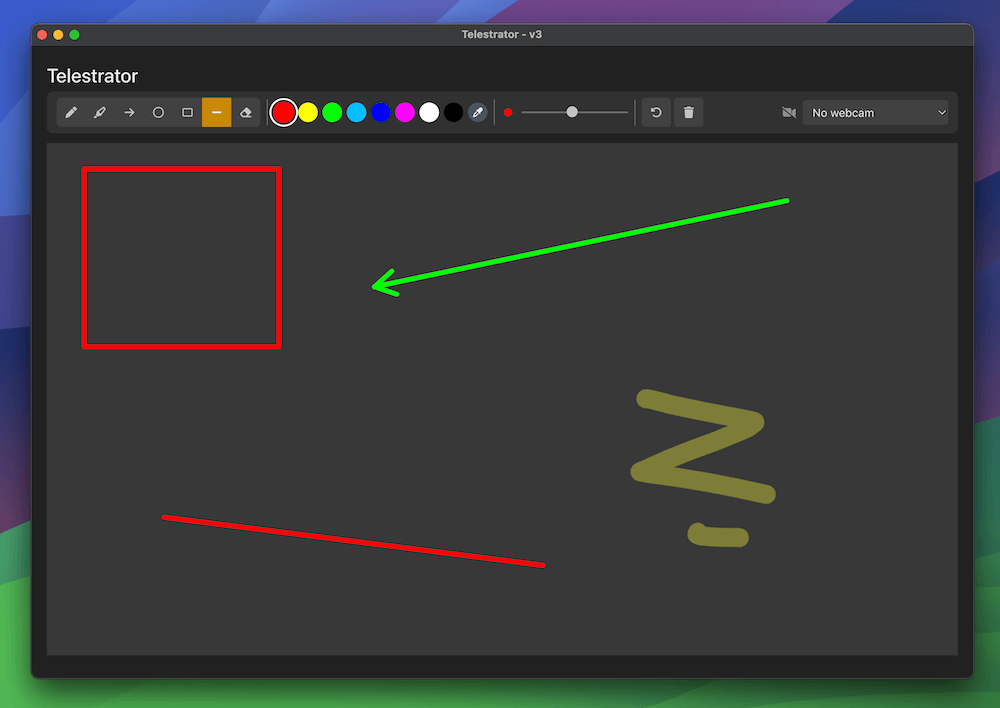
The Telestrator graphic lets you draw shapes, lines, and freehand annotations directly over your broadcast output in real time. It’s ideal for sports analysis, tactical breakdowns, educational presentations, or any scenario where you need to visually highlight and explain what’s happening on screen.
Video overview
Getting Started
To start using the Telestrator:
- Add a Telestrator graphic to your H2R Graphics project
- In the sidebar, click Open Telestrator to launch the drawing window
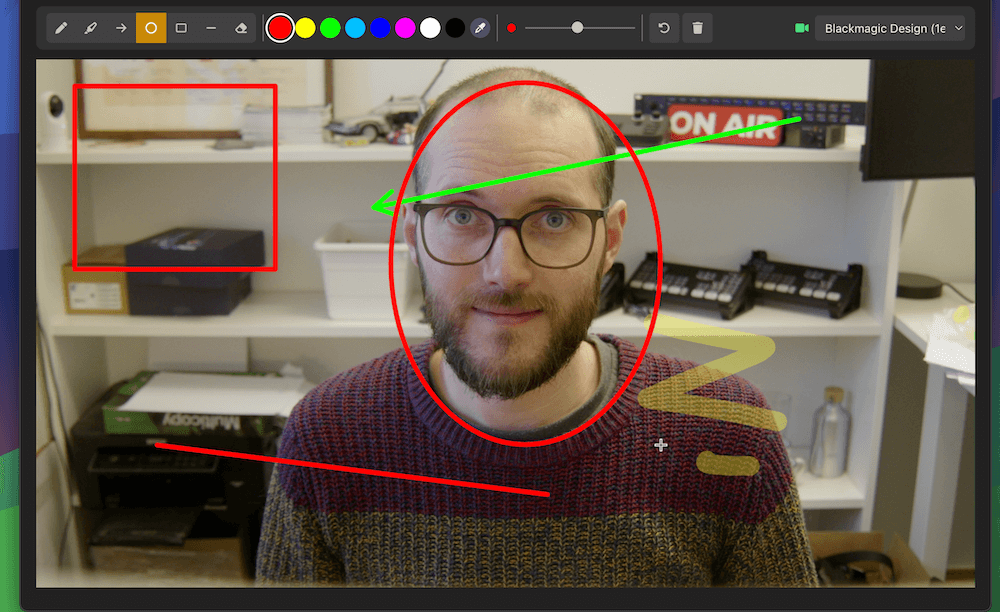
- Use the toolbar to select a shape, pick a colour, and start drawing
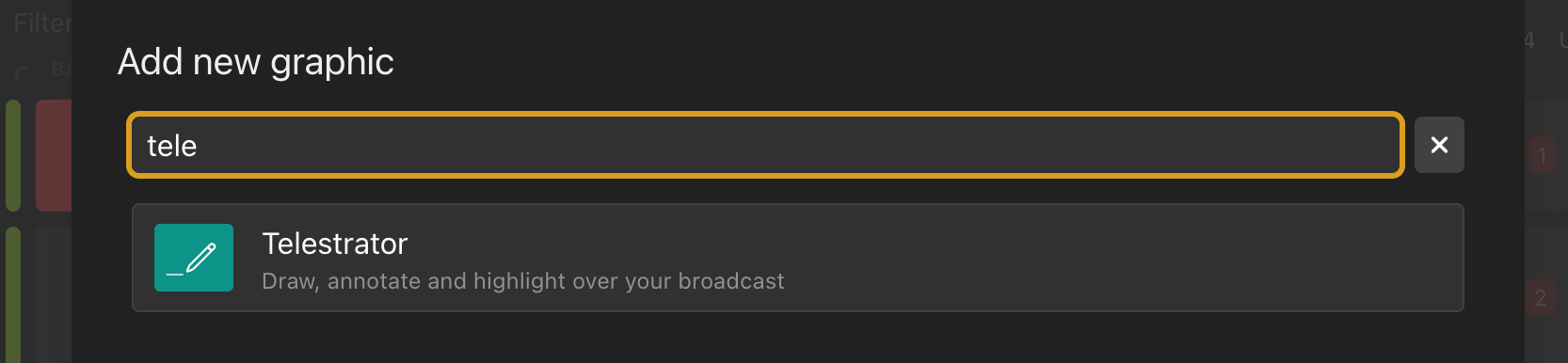
Show / Hide
The Telestrator behaves like any other graphic in your rundown. Use the show/hide controls on the rundown to toggle the Telestrator output on and off. When hidden, all your strokes are preserved — they simply won’t appear on the broadcast output until you show the graphic again.
Toolbar
The toolbar at the top of the Telestrator window gives you quick access to all drawing controls.

Shape Selection
Choose the drawing tool that fits your needs:
- Draw: Freehand drawing for natural annotations
- Highlight: Semi-transparent strokes for emphasising areas without obscuring content
- Arrow: Directional arrows for indicating movement or focus
- Rectangle: Draw squares and rectangles to call out specific areas
- Circle: Draw circles and ellipses to call out specific areas
- Line: Straight lines between two points
- Laser: A temporary trail that fades after you draw, perfect for drawing attention to specific areas without leaving permanent marks on your canvas
- Eraser: Erase specific strokes/shapes
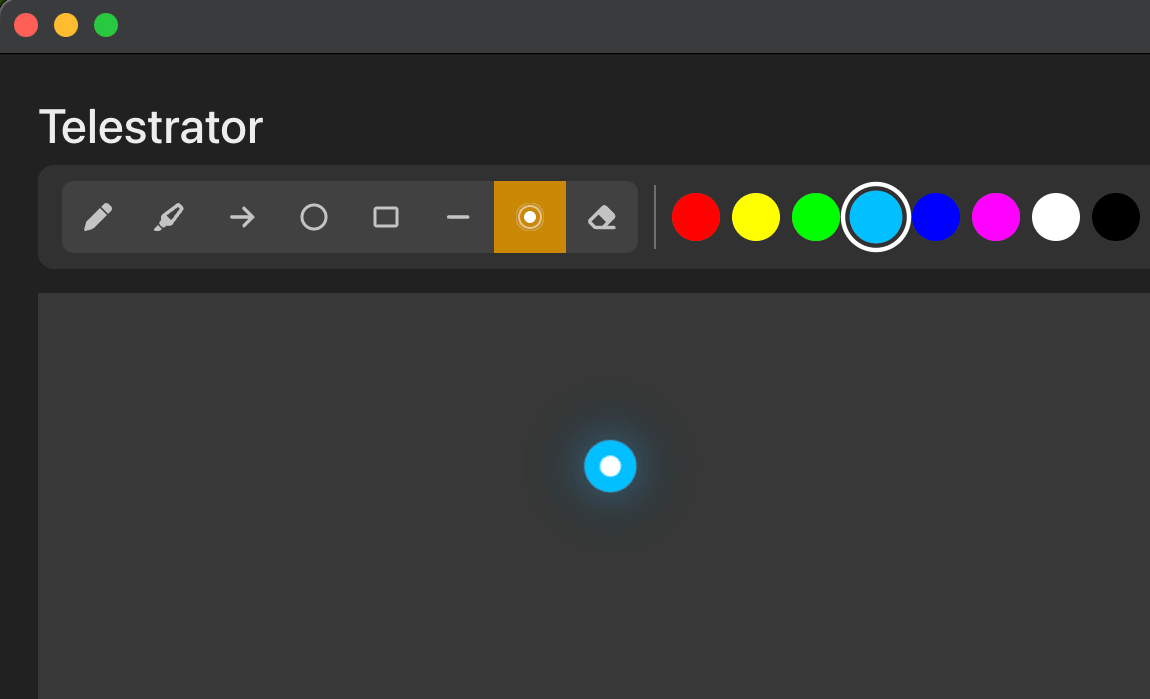
Colour
Click the colour picker to choose a stroke colour. Select from the preset palette or enter a custom colour value to match your brand.
Stroke Size
Adjust the stroke width to suit your annotation style. A thinner stroke works well for precise detail work, while a thicker stroke is easier to see on busy backgrounds.
Undo
Click Undo to remove the last stroke or shape you drew. Each click steps back one action, so you can quickly correct mistakes without clearing the entire canvas.
Delete All
Click Delete All to remove every stroke and shape from the canvas at once. This is useful for resetting between segments or analysis points.
Webcam
The Telestrator includes an optional webcam overlay that displays a camera feed behind the drawing canvas. This gives you a live reference to draw over, making it easier to annotate specific areas of the scene.
Important: The webcam feed is for reference only and is not included in the broadcast output. Viewers will only see the strokes and shapes you draw, overlaid on your main broadcast source.
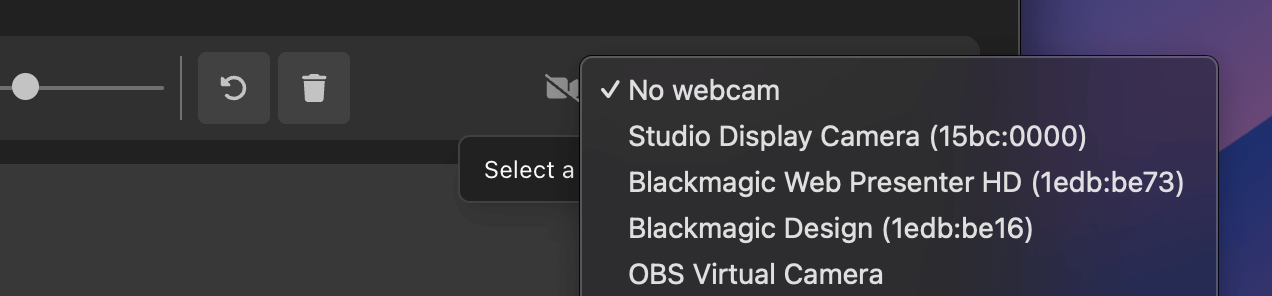
To enable the webcam:
- Open the Telestrator window
- Select your webcam input from the available devices
- The camera feed appears behind the drawing canvas
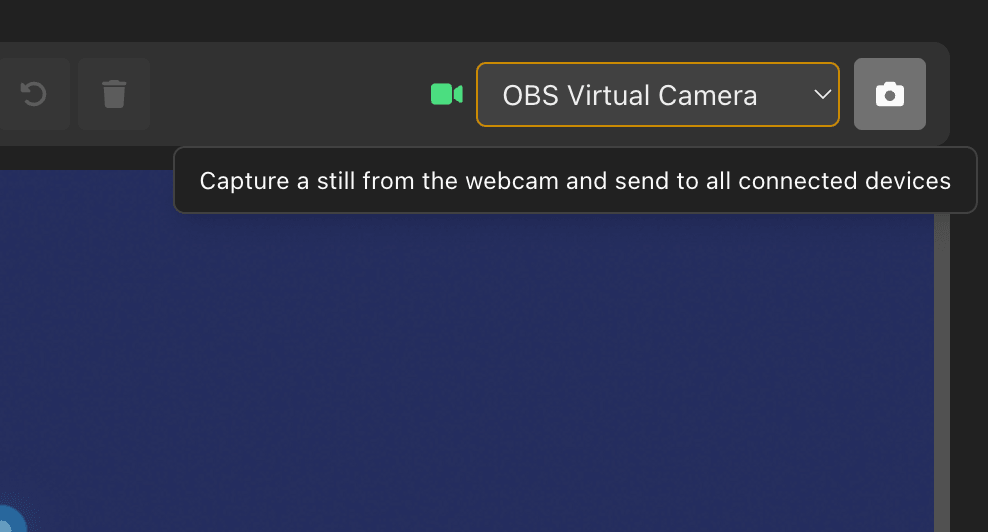
Webcam Capture
You can capture a still from your webcam and send it to other devices like tablets. This is useful for freezing a frame to annotate while the live feed continues.
Drawing
Drawing on the Telestrator is straightforward — select your tool, choose a colour and stroke size, then draw directly on the canvas. All strokes and shapes appear on the broadcast output in real time as you draw them.
Tips:
- Use Draw for quick, natural annotations
- Use Highlight to draw attention to an area without covering it up
- Use Arrow and Line for clear directional callouts
- Combine Circle with arrows to create structured analysis diagrams
- Use Laser when you want to point something out without leaving a permanent mark
- Use Undo to step back one action at a time, or Delete All to reset the canvas
API
The Telestrator supports control via the H2R Companion module, allowing you to trigger all major actions from a Stream Deck, macro pad, or automation system.
Available Companion actions:
| Action | Description |
|---|---|
| Set Tool | Switch the active drawing tool (Draw, Highlight, Line, Circle, Arrow, Laser, etc.) |
| Set Brush size | Change the size of stroke |
| Set Colour | Change the current stroke colour |
| Undo | Undo the last stroke |
| Delete All | Clear all strokes and shapes from the canvas |
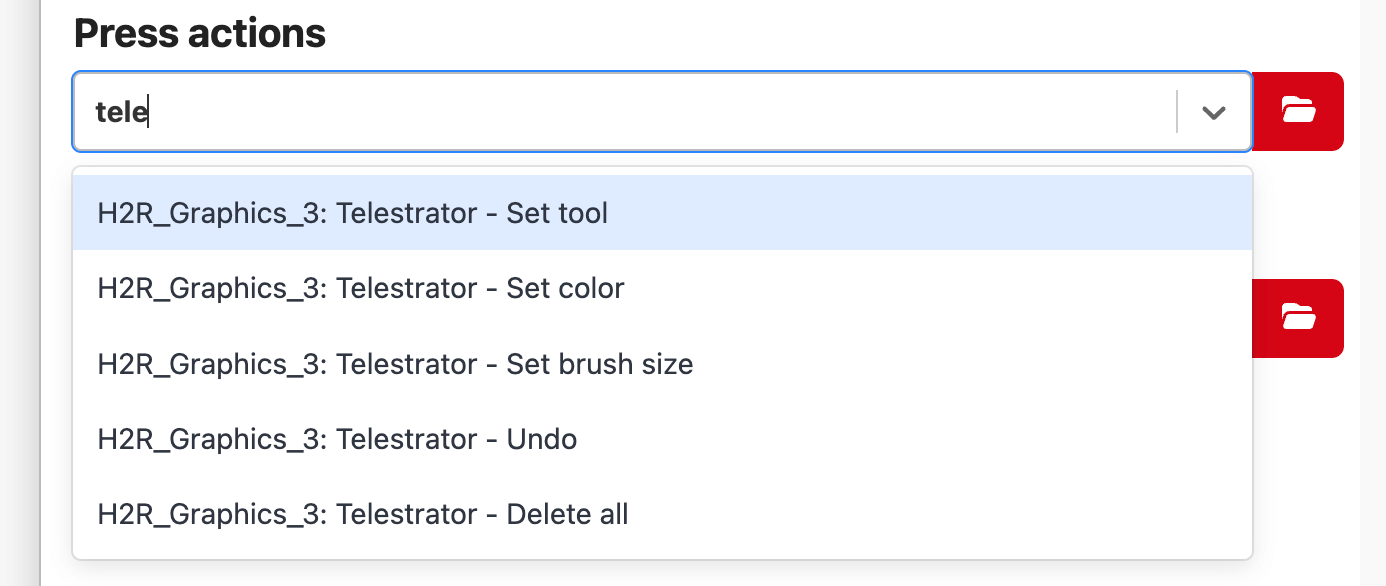
This makes it easy to switch tools and reset the canvas mid-broadcast without needing to interact with the Telestrator window directly.