H2R Graphics

🆕 New in Version 3.4

Media trim, drag & drop images, a rebuilt CSS editor and more...

See what's new →

Live sports streaming graphics on a budget

Scoreboards, game clocks, player names and sponsor slots for school, club and community sport, without a broadcast truck.

By John Barker • 27 October 2026

Sports streams live or die on graphics

Viewers forgive a lot on a community sports stream. A slightly soft camera, a bit of wind noise, a shaky pan. What they will not forgive is not knowing the score. Someone joining at half time needs to see the score and the clock within a second of clicking in, or they are gone.

Good news: the graphics that make a sports stream feel professional are simple, and you do not need broadcast budget to run them.
A sports scoreboard graphic
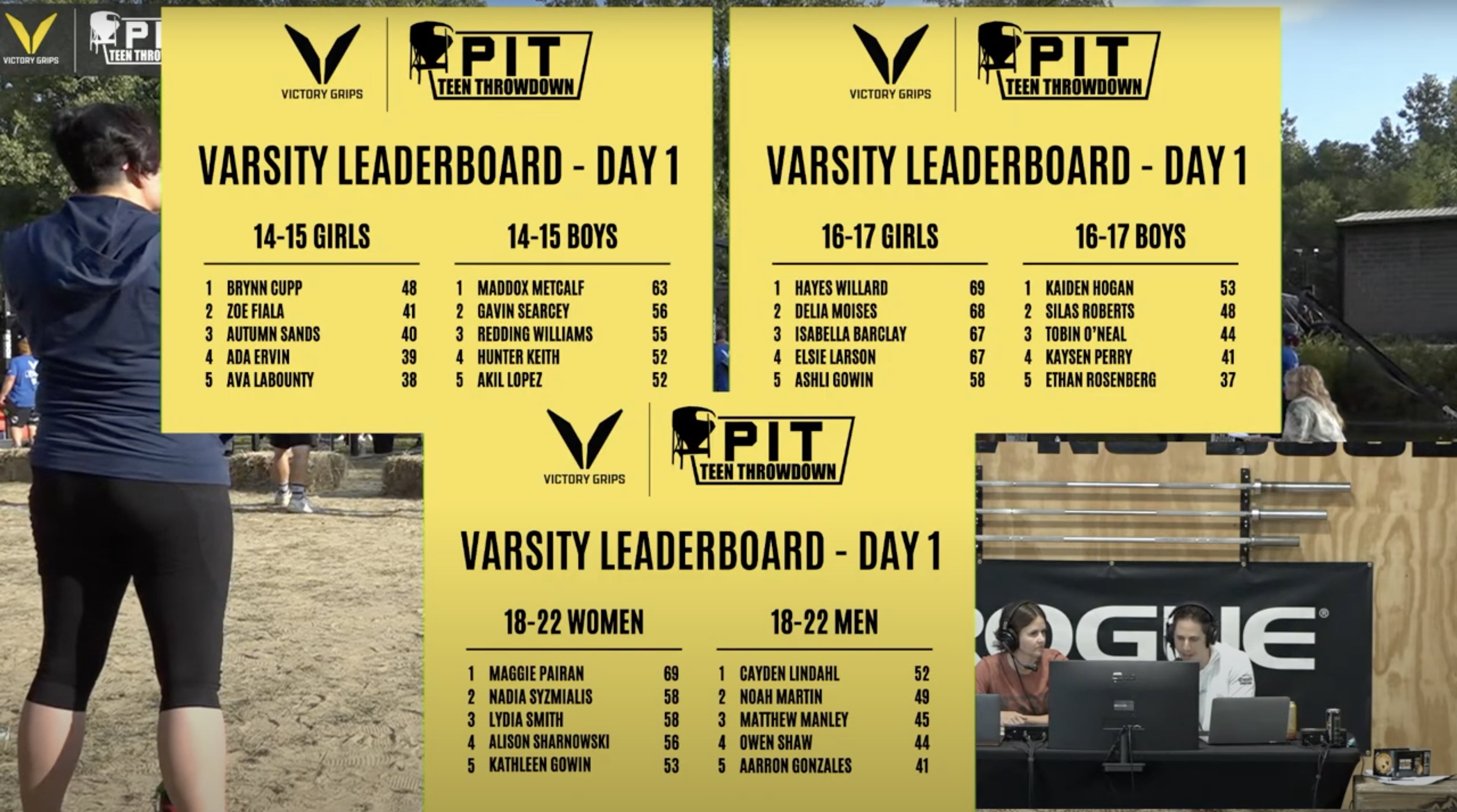
Scoreboard graphics on a CrossFit competition stream by PIT Media

The graphics every sports stream needs

  • A scoreboard overlay. Team names and the score, on screen for the whole game. Small, in a corner, always there.
  • A game clock. Counting up or down, depending on the sport. Ideally part of, or next to, the scoreboard.
  • A starting soon screen. With a countdown to kick off, so early viewers stay.
  • Lineups and player names. Lower thirds for players, coaches and commentators.
  • Sponsor graphics. Logos and messages for the club’s sponsors, shown at natural breaks.
  • Schedules and results. For tournaments and multi-event days, what is on now and what is next.
  • A final score screen. Full screen, at the end, for the highlights clip.

Building them in H2R Graphics

H2R Graphics is free to download for Mac, Windows, Linux and Raspberry Pi. It runs next to your streaming software and sends all of your graphics through one output.

Scoreboard

Add a Score graphic, set your team names, and keep it on air for the whole game. The Score tab in the app gives the operator big, simple controls to add points, take them away or type in any number. You can track multiple teams and several score levels per team, which covers sets, periods, games or fouls depending on the sport.

Game clock

Use the Time graphic:

  • Count up for football, rugby or hockey. You can set a custom start time, so the second half can start at 45:00 and run to 90:00.
  • Countdown for basketball quarters, timeouts and breaks.
  • To time of day for a starting soon screen that hits zero at kick off.

Player names and lineups

Lower third graphics for each player, coach and commentator. For big rosters, set up list variables or pull names straight from a Google Sheet so the operator picks a player from a list instead of typing during play.

Sponsors

Sponsor slots pay for the stream, so treat them properly. Use Image graphics for logos, Image with message (Pro) for a logo and a line of text, or a Ticker for a rolling list of supporters. Schedule them for natural breaks: timeouts, half time and after scores.

Schedules and results

The Pro Now Next Then graphic cycles through what is on now and coming up next, which is perfect for tournaments. For anything custom, such as a league table or a bracket, Pro users can design their own layout with the Build graphic.

Running it during the game

Sport moves fast and the operator needs both eyes on the action. A few ways to make life easier:

  • Use a Stream Deck. The Companion module puts score buttons, clock start and stop, and sponsor graphics on physical buttons.
  • Run graphics from a second device. With local network control, the scorer can update the score from a laptop or iPad at the bench while someone else runs cameras.
  • Automate from your own scoring system. The HTTP API can set, increase or decrease scores, so a scoring app or script can drive the scoreboard directly.

Getting the graphics into your stream

  • OBS Studio: one Browser Source with a transparent background. See the OBS guide.
  • vMix: a Web Browser input on an overlay channel. See the vMix guide.
  • ATEM Mini: send the graphics from a computer into the ATEM and key them over your cameras. See the ATEM guide.
  • NDI: enable the NDI output and pick the graphics up on your network.

Tips from the sideline

  • Keep the scoreboard small. It needs to be readable on a phone, not cover the action. Top left or top right usually works best.
  • Check it against the real scoreboard. Have one person own the score and check it at every break. A wrong score on screen gets noticed fast.
  • Test before the first whistle. Run every graphic once during the warm up.
  • Save a template. Teams, colours and sponsors rarely change week to week. Set them up once.

See it in action

PIT Media used H2R Graphics Pro for scoreboards, timers, schedules and lower thirds on a CrossFit competition stream. Read how they did it.

Get started

Download H2R Graphics for free and have a scoreboard on your next stream.

Simplify your graphics workflow

Start using graphics on your live stream or video productions.

Download for free

Get H2R Graphics product updates

New features, releases and tips, straight to your inbox.

No spam. Unsubscribe any time.