H2R Graphics

🆕 New in Version 3.4

Media trim, drag & drop images, a rebuilt CSS editor and more...

See what's new →

How to add lower thirds to a live stream

Names, titles and captions that look like broadcast TV, working in OBS, vMix, ATEM and more.

By John Barker • 1 September 2026

What is a lower third?

A lower third is the graphic that sits in the bottom third of the screen and tells your viewers who they are looking at. A name and a job title is the classic example, but the same space works for locations, song titles, sponsor credits, social handles and quick captions.

Lower thirds are the single quickest way to make a live stream look produced. They answer the question every new viewer has (“who is this?”) without anyone having to say it out loud.
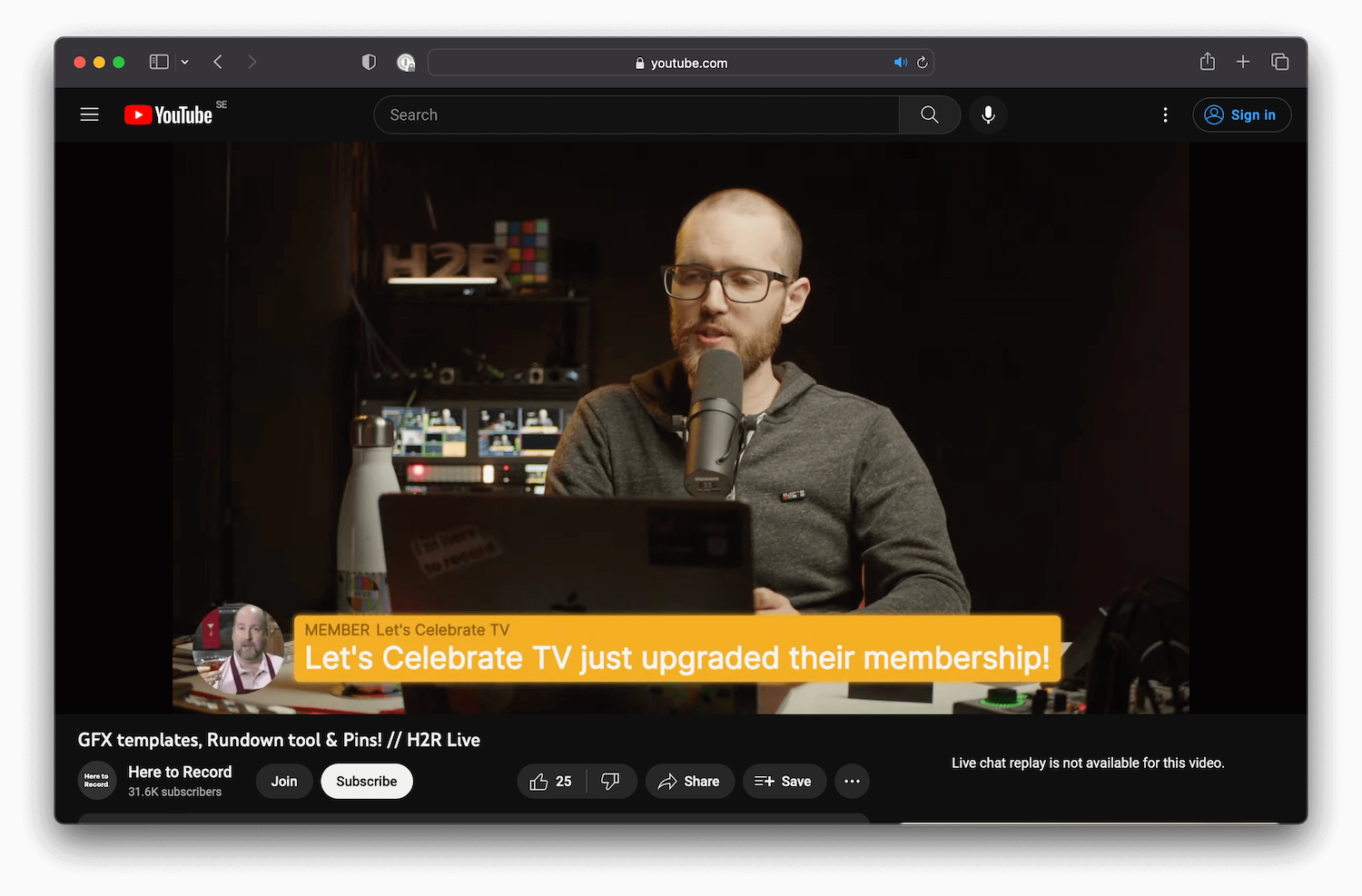
A live stream with graphics on screen
Graphics on air in a live production

Why not just use a static image?

You can drop a PNG of a name bar into your streaming software and call it done. It works for one speaker. It falls apart as soon as you have a panel of four, a running order that changes, or a guest whose title you only find out five minutes before air.

A proper lower third tool gives you:

  • Editable text so you can change a name in seconds, not re-export an image.
  • Animation in and out so graphics feel intentional rather than popping on and off.
  • A running order of every lower third for the show, ready to fire one after another.
  • Consistent styling so every graphic matches your brand without manual nudging.

How to add lower thirds with H2R Graphics

H2R Graphics is a free download for Mac, Windows, Linux and Raspberry Pi. It runs as its own app and sends every graphic out through a single output, which you bring into whichever switcher or streaming software you already use.

1. Download and open H2R Graphics

Grab the app from the download page and open it. Create a new project for your show.

2. Add a Lower third graphic

Add a Lower third graphic to your rundown and type in the name and title. Add one for each speaker. They sit in the rundown in order, so on the day you simply work down the list.

The rundown in H2R Graphics
Graphics lined up in the rundown

3. Style it to match your brand

Set your colours and fonts in the theme settings once, and every lower third follows them. If you want something truly custom, Pro users can design their own layout from scratch with the Build graphic, or use the Lower third animated graphic for text that animates on.

4. Bring the output into your production

Copy the output URL from H2R Graphics and add it to your production software:

  • OBS Studio: add a Browser Source and paste in the output URL. The background is transparent, so graphics sit straight over your cameras. See the OBS guide.
  • vMix: add a Web Browser input with the output URL and put it on an overlay channel. See the vMix guide.
  • Blackmagic ATEM: send the output to the ATEM from a computer and key it with a chroma or luma key. See the ATEM guide.
  • Anything NDI: turn on the NDI output and pick H2R Graphics up as a source on your network.

5. Fire it live

Click a graphic in the rundown to put it on air, click again to take it off. If you run your show from a Stream Deck, the Companion module gives you a button per graphic.

Lower third design tips

A few rules that make lower thirds look professional:

  • Keep it short. A name and a title. If it needs two lines of title, the title is too long.
  • Stay inside title safe. Keep text away from the edges of the frame so nothing gets cropped on TVs or social crops. Our free safe area overlay shows you exactly where the edges are.
  • Use strong contrast. White text on a solid or semi-transparent bar reads on any background. Text straight over video rarely does.
  • Leave it up long enough. Around five to eight seconds is enough to read a name twice. Then take it off.
  • Re-run it. Bring a speaker’s lower third back when they speak again later in the show. People join streams halfway through.
  • Spell check everything. Confirm names and titles with guests before the show. A misspelt name on screen is the one mistake everyone notices.

Lower thirds for every kind of stream

  • Conferences and corporate events: speaker names and session titles, with the Now Next Then graphic for the schedule.
  • Churches: the speaker’s name, scripture references and announcements.
  • Podcasts and interviews: host and guest names, plus social handles.
  • Sports: player names, substitutions and sponsor credits.
  • Music: song titles and artist names between tracks.

Get started

H2R Graphics is free to download and the Lower third graphic is included in the free version. Download it now and have your first lower third on air in a few minutes.

Simplify your graphics workflow

Start using graphics on your live stream or video productions.

Download for free

Get H2R Graphics product updates

New features, releases and tips, straight to your inbox.

No spam. Unsubscribe any time.